Producing a Standard G5 Character with Self-made Mesh
If you have prepared, downloaded or produced a new character mesh, you may also take advantage of the bone structures from the G5 character templates to
create standard G5 characters with custom appearances.
The flowchart is as shown below:
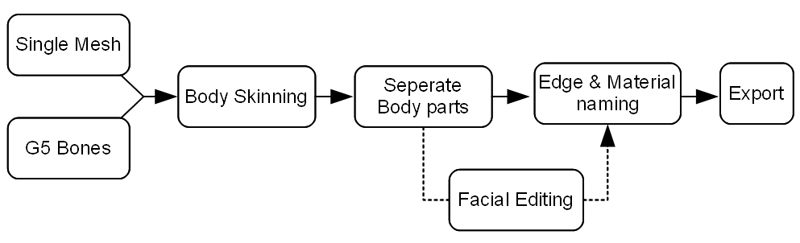
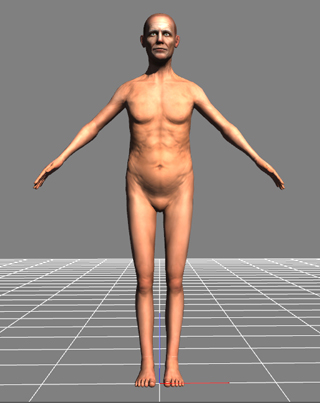
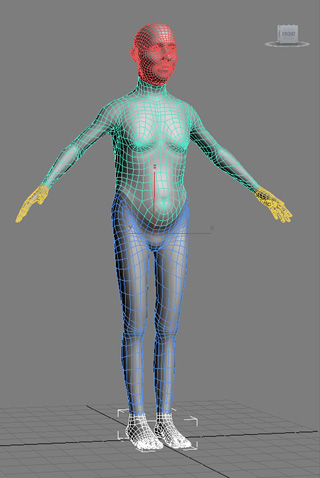
In the following example, we use an old man mesh to skin onto the G5 skeleton structure to generate a new G5 character.
Preparation and Outcome
|
|
|
|
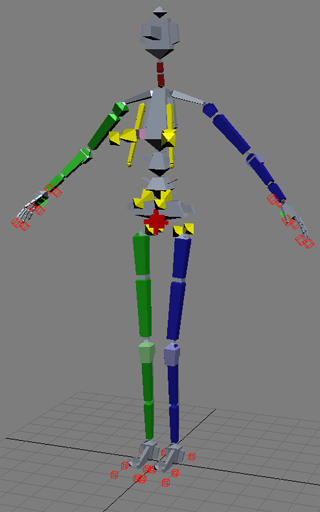
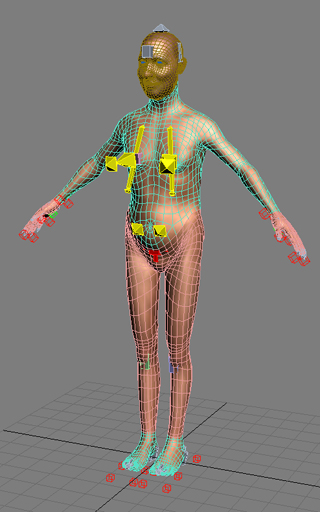
G5 skeleton template.
|
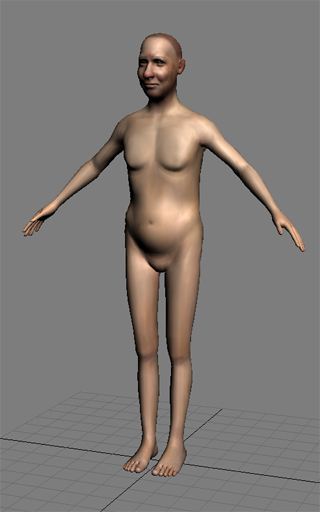
Custom mesh without bones and skinning data.
|
Integrated G5 standard character.
|
-
The head mesh must be created via a more complicated process, which will not be described in this section.
Creating a G5 Character with Custom Appearance
Checking the Mesh
-
Check the old man mesh to make sure it conforms to the specifications laid out here:
connecting edges and naming.
-
Make sure that each connecting edge contains the correct number before the mesh is dissected.
Relocating the Custom Human Mesh
-
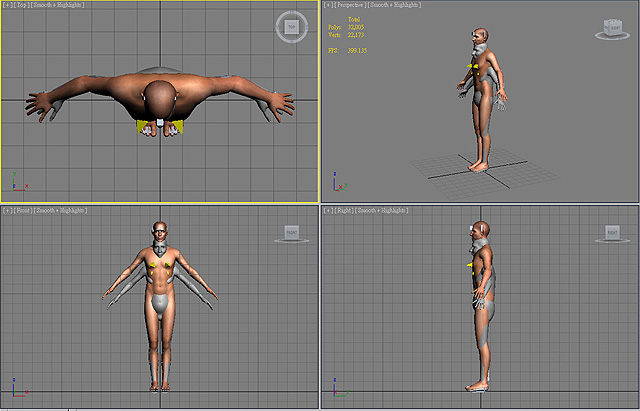
Open the G5 template file.
Show the G5_Mesh_Head, G5_Mesh_Body, and G5_Bone_Base layers only.
-
Remove the clothes (if any) of the character to make it nude.

-
Import the prepared old man mesh that follows the vertex-number and
material-naming regulations.
-
Relocate the old man. Make sure that its soles align to the horizontal plane.
Modifying Base Bones
After the mesh is ready, you must modify the base bones of the template so that the original mesh (male) aligns to the custom mesh as much as possible. This ensures compatible
body part proportions when they are exchanged with others.
-
Go to frame 0. Turn Off the Set Key mode.
-
Adjust the individual base bones according to the rules below
in order to produce the best skinning results:
-
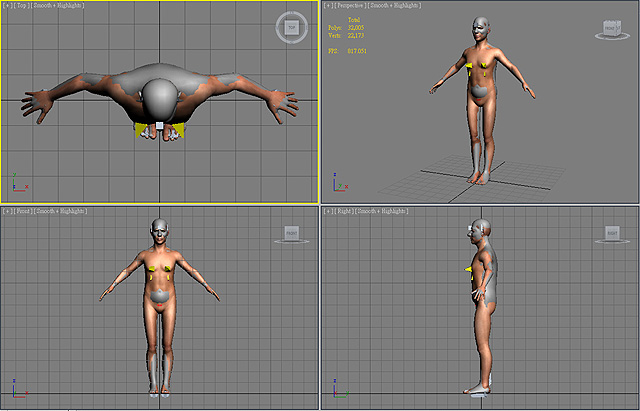
First, move the RL_Hips to align to the hips of the old man mesh.
-
Make sure the Set Key is Off, and scale each base bone.
-
Use the FK method to rotate base bones; turn on the Set Key mode if necessary.
-
Never rotate RL_R_Ribs and RL_L_Ribs.
-
After the modifications, the size of the original human mesh should closely match the custom one.
-
Remove the RL_Upper, RL_Hands, RL_Lower, and RL_Shoes meshes of the original human
(the young man). Keep the RL_Face, but hide it first because you may need it for export later.
Skinning the Custom Human Mesh
-
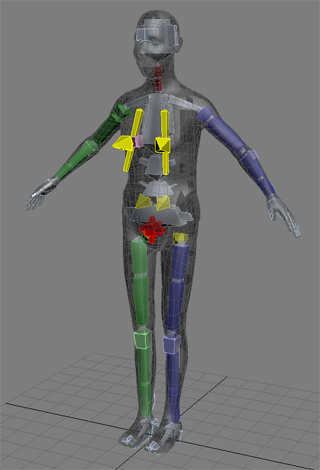
Show the G5_Bone_Base and G5_Bone_Twist layers.
-
Skin the custom mesh to the bones according to the table in the Body Skinning and Rigging
section (the head mesh can be temporarily skinned to the RL_Head)
-
Move the base bones to check the skinned results.
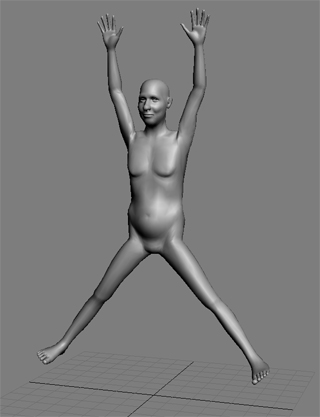
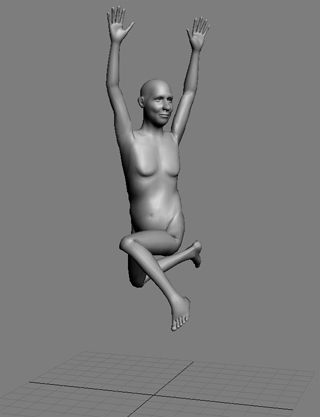
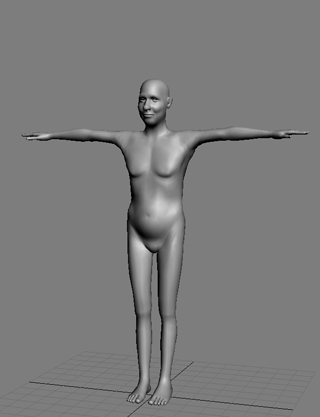
Dissect the Human Mesh
After the skinning procedure, you need to separate the mesh into different body parts, Face, Upper,
Lower, Hands and Shoes.
Since the dissecting procedure is irreversible, please save your project with skinned data as a back up.
-
Make sure that the vertex number of every connecting edge is identical to the specifications.
-
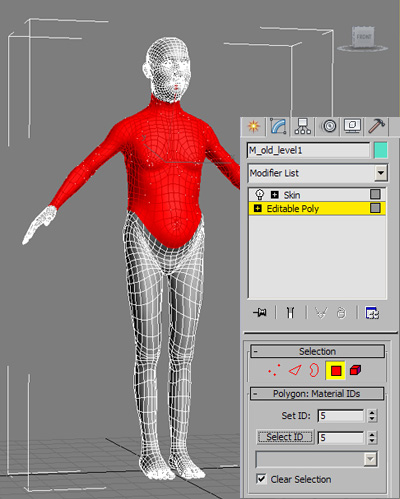
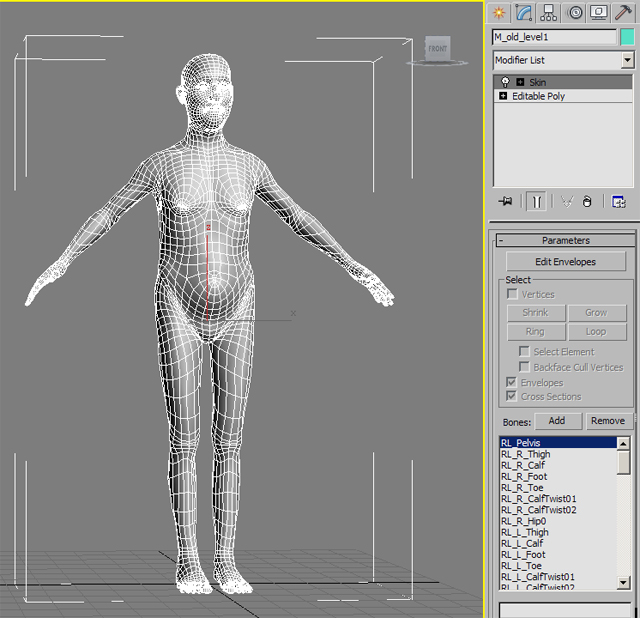
Select the human mesh. In the Modify Panel, you will see two modifiers: Skin and Editable Poly.
-
Go to frame 0. Select the Editable Poly modifier to switch to the Polygon Mode.
-
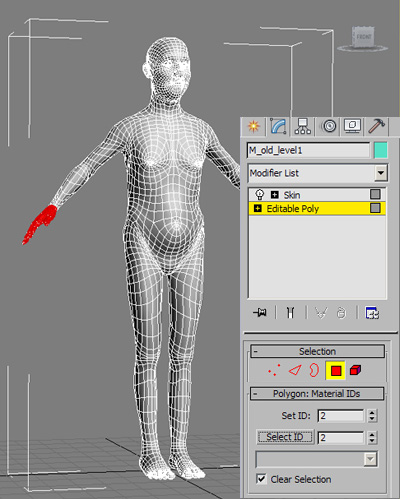
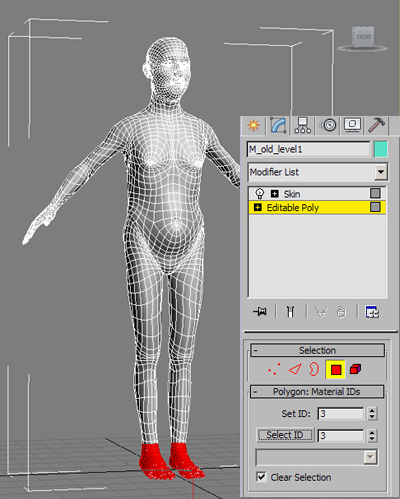
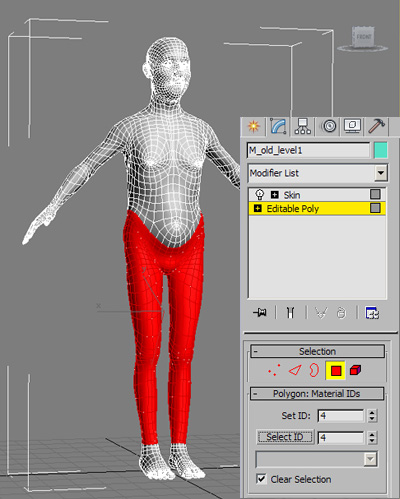
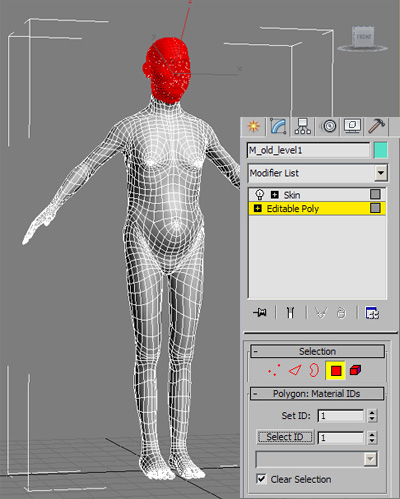
Select head area and set the Polygon: Material ID as 1.
-
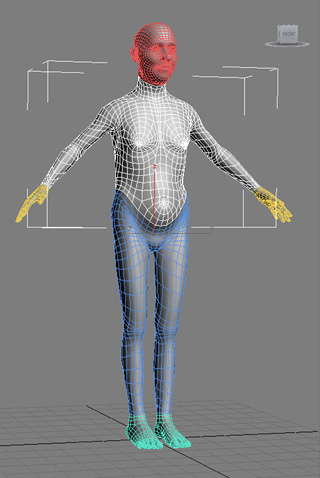
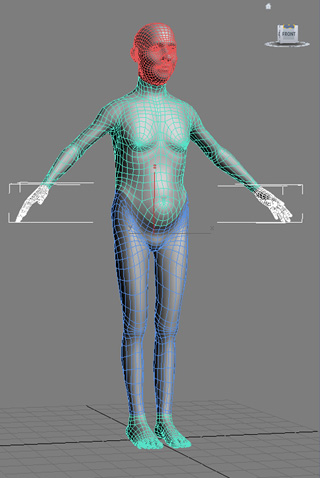
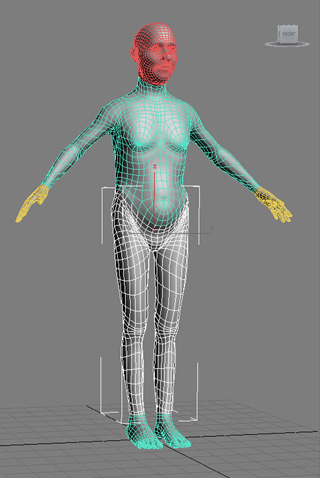
Repeat the same task for the upper body, hands, lower body and feet areas, and number them accordingly (as shown below) from 2-5.
-
Keep the Polygon Mode of the Editable Poly modifier
unchanged after you finish with setting the Polygon: Material ID.
-
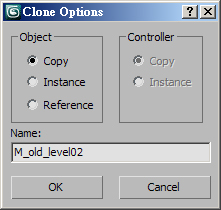
Select the human mesh (with 5 individual Material IDs) and then Clone. Choose the Copy
radio button in the Clone Options panel. Repeat this four more times to create
five identical custom meshes of the old man, each with their own separated material IDs.
-
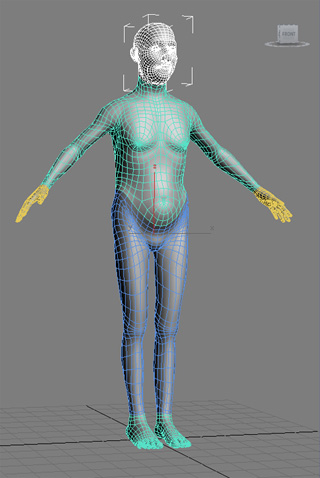
Select one of the cloned old man meshes. Keep the Head part and remove the other unnecessary parts from the entire
cloned human mesh.
-
Repeat the same steps for the rest of the cloned human meshes but retain a different body part for each of these cloned
human meshes while deleting all of the other body parts of that particular mesh.
For example, the first mesh you may retain the head, however in the second mesh only retain the 'Upper',
deleting all of the other body parts with their separate material IDs.
-
Delete the original human body mesh (the young man).
-
Select the meshes of the dissected body parts and rename them as RL_Upper, RL_Lower,
RL_Hands, RL_Shoes; keep the name of
the dissected head mesh.
-
Check whether the vertex number of the edges and the material settings follow the specifications.
-
Because the head has a specialized creation process, you can use the original RL_Face to be exported
along with the new body part meshes.
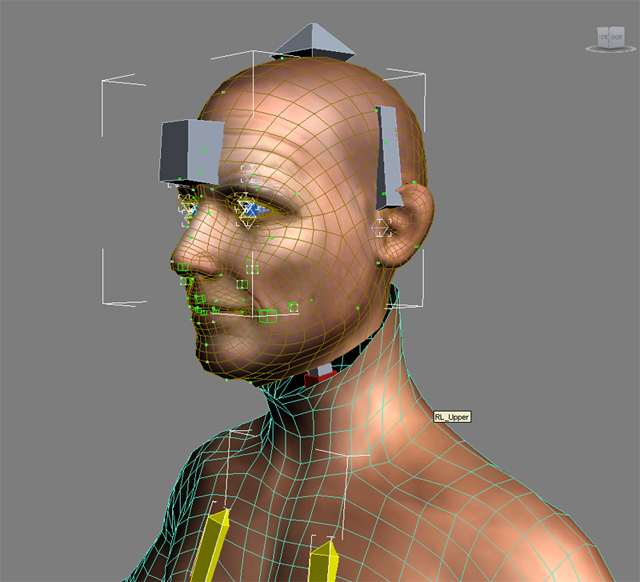
Please note that the original RL_Face mesh in the template will be auto-seamed to the custom RL_Upper body mesh in iClone 5;
you are allowed to leave the seam between these two meshes in 3ds Max 2010, or optionally adjust the position of the original RL_Face so that their connecting edges are
very close to each other.
-
Copy the T-pose in frame 500 to frame 0.
-
Export the character with the young man's RL_Face mesh and the
old man's body part meshes in T-pose.

-
Load the exported character into iClone.